This is a tutorial only. No login is required.
INTRODUCTION
Stay on top of your student finances! Log into the CSUN Portal and select the top navigation My Finances tab. Then select View Account Information from the drop-down menu to:
- Check payment due dates
- View anticipated financial aid
- Monitor charges and credits
- Review your transaction history
For help with your account, contact either of the following offices:
- Student Accounting – (818) 677-8000, Option 2; student.accounting@csun.edu
- University Cash Services – (818) 677-8000, Option 1; ucs@csun.edu
 About Tuition & Other Fees
The CSU makes every effort to keep student costs to a minimum. Fees listed in published schedules or student accounts may need to be increased when public funding is inadequate. Therefore, CSU must reserve the right, even after fees are initially charged or initial fee payments are made, to increase or modify any listed fees. All listed fees, other than mandatory systemwide fees, are subject to change without notice, until the date when instruction for a particular semester or quarter has begun. All CSU listed fees should be regarded as estimates that are subject to change upon approval by the Board of Trustees, the Chancellor, or the Presidents, as appropriate. Changes in mandatory systemwide fees will be made in accordance with the requirements of the Working Families Student Fee Transparency and Accountability Act (Sections 66028 - 66028.6 of the Education Code).
Step 1
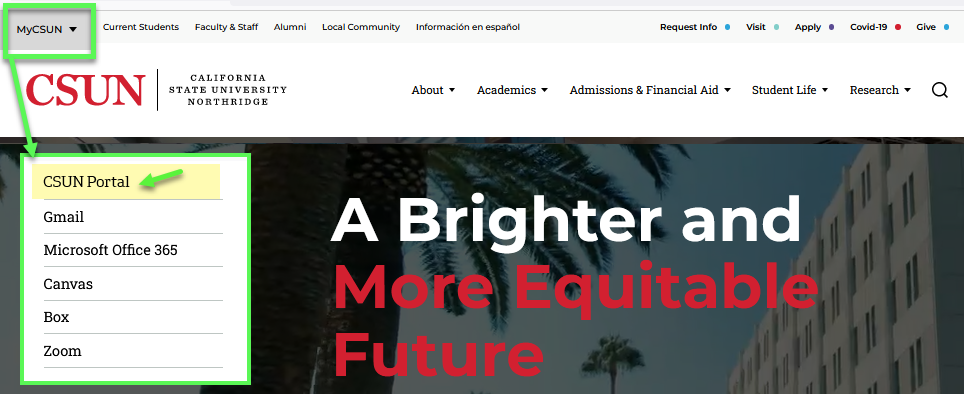
Go to the CSUN home page at www.csun.edu and:
- Select the CSUN Portal link from the "MyCSUN" menu in top navigation, upper left.
- Log in with your CSUN user ID and password.
Step 2
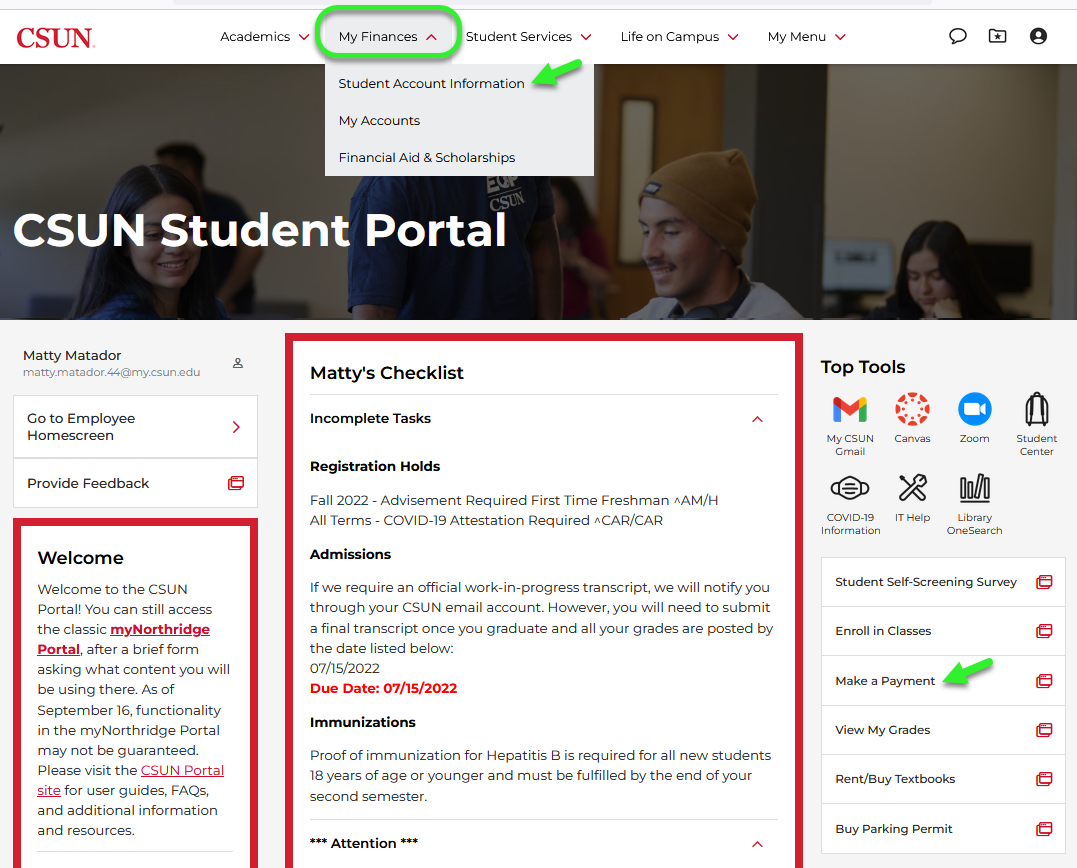
When the CSUN Portal home page displays, select the My Finances menu in the top navigation (shown below).
In the My Finances menu, select the Student Account Information link.
Step 3
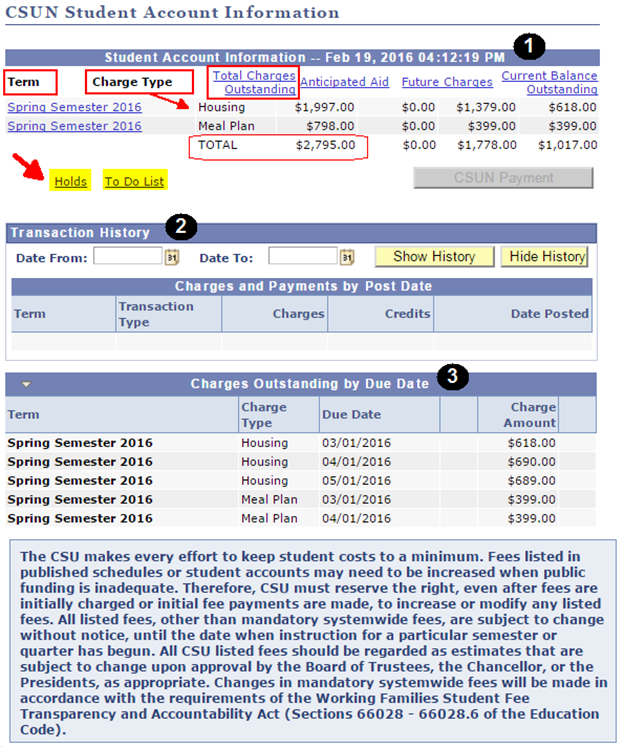
Your CSUN Student Account Information page displays.
Select the “Holds,” “To Do List” or “Alerts” (not shown) links to view any holds and payment reminders.
Three tables also display on this page:
- Student Account Information
- Transaction History
- Charges Outstanding by Due Date
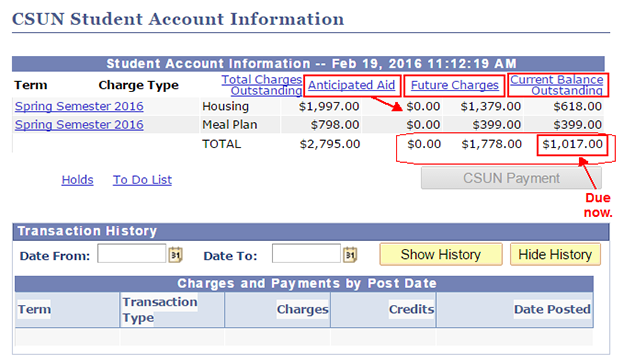
In the Student Account Information table, the first three columns from left to right are:
- Term – Transactions posted by term.
- Charge Type – Tuition and Other Fees, Housing, Meal Plans, etc.
- Total Charges Outstanding – All unpaid charges posted to your account.
At the bottom of column 3, the total of all unpaid charges posted to your account displays, whether due now or not.
Step 4
The fourth through the sixth columns in the Student Account Information table are:
- Anticipated Aid – Financial Aid that you've accepted as part of your award but has not yet been paid to your account. Learn more with the financial aid tutorials.
- Future Charges – Housing, meal plan and other charges that are not yet due.
- Current Balance Outstanding – The total amount that is due now.
Step 5
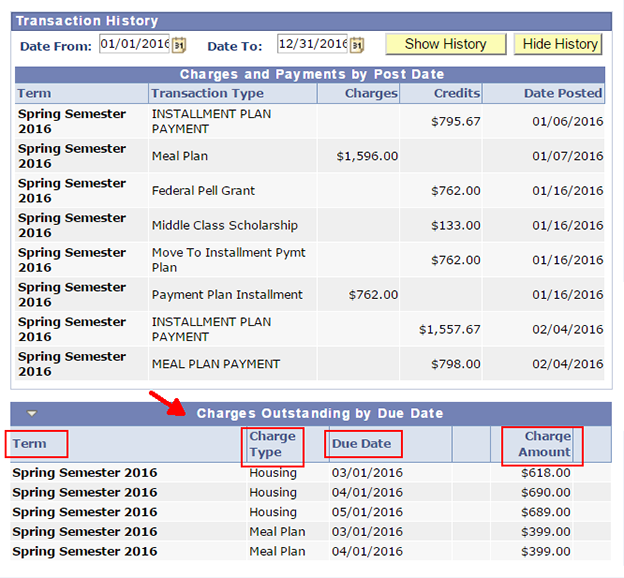
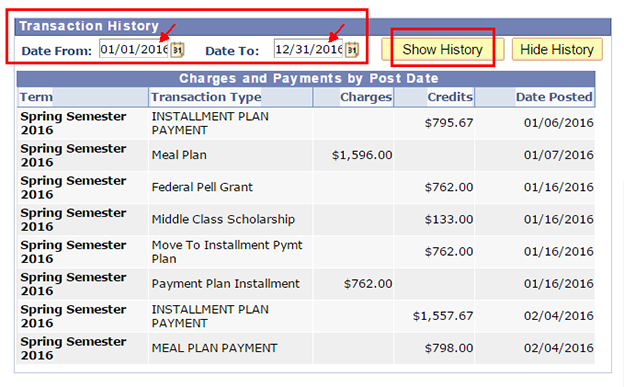
The Transaction History table displays charges and credits by term, transaction type, and date posted.
To display your transaction history:
- Enter a date range in the Date From and Date To boxes. (To view all history, leave the boxes blank.)
- Click the Show History button.
Details for all charges and credits in the date range you selected will then display in the Charge and Payments by Post Date table, including term, transaction type, charges, credits and date posted.
Step 6
The Charges Outstanding by Due Date table shows only your charges in four columns: by term, charge type, payment due date, and charge amount.
Important notes:
- Check your account balance whenever you adjust your class schedule. You may owe additional fees or be eligible for a refund each time you add, drop, or swap classes.
- Plan ahead! Check the University Cash Services Fee Payment Schedule for payment deadlines when you enroll.
To avoid disenrollment from some or all of your classes, pay tuition and other fees in full by the published due date. Payments made after the deadline will not prevent disenrollment.