
This is a tutorial only. No login is required.
INTRODUCTION
The Degree Progress Report (DPR) provides a full-picture audit of a student’s progress toward degree completion. Undergraduate, master's degree and doctoral students have access to the DPR audit. However, only undergraduates have access to the DPR Planner at this time.
This guide covers both components of the interactive DPR and Planner tool:
- The Audit tracks a student’s graduation progress, displaying completed courses and remaining requirements.
- The Planner allows a student to drag and drop courses from an audit into a personalized term-by-term plan for completing their remaining requirements. Planning future courses will help departments better analyze and meet student course demand in the future.
The DPR Audit:
- Lists course work completed at CSUN and at other schools from which a student submitted official transcripts.
- Places course work into degree requirement sections.
- Identifies CSUN requirements a student still needs to satisfy in order to graduate.
- Changes to reflect a student’s progress toward degree and major objectives.
- Helps students prepare for meetings with their academic advisor.
Undergraduate students can create a personalized term-by-term plan for completing remaining requirements.
Note: Students are advised to always use an Audit in consultation with their advisor before finalizing any decisions related to their academic major.
 Additional Resources: Degree Planning Tools
DPR Step 1
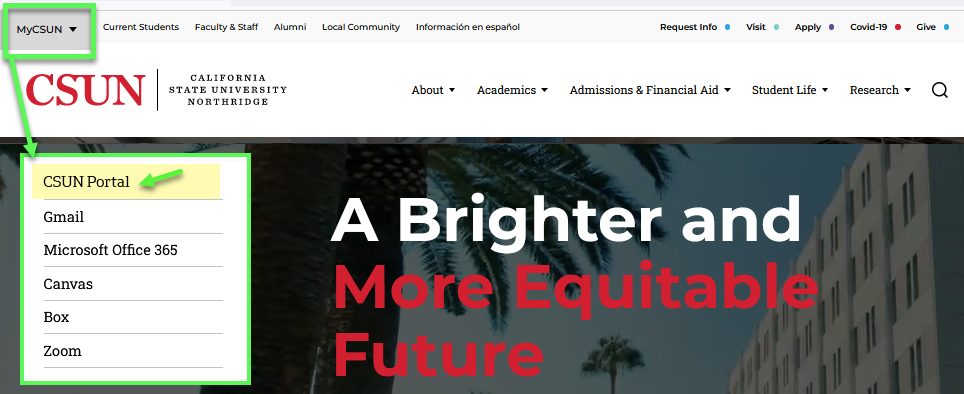
Go to the CSUN home page at www.csun.edu and:
- Open the MyCSUN menu in the top navigation.
- Select the CSUN Portal link.
- Log in with your CSUN user ID and password.
DPR Step 2
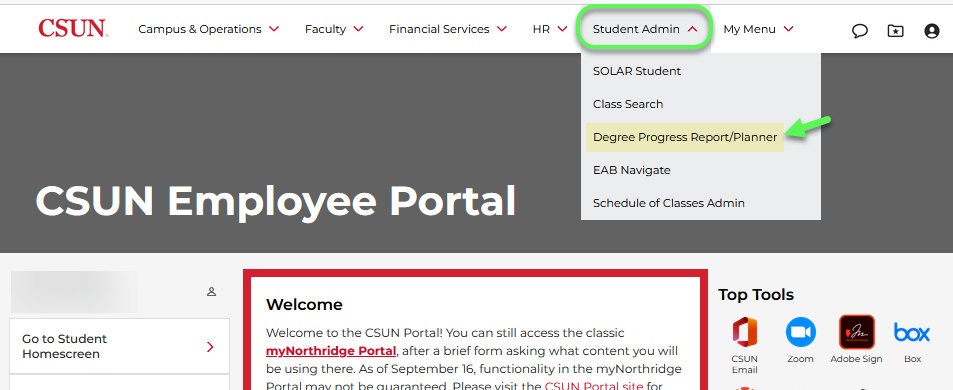
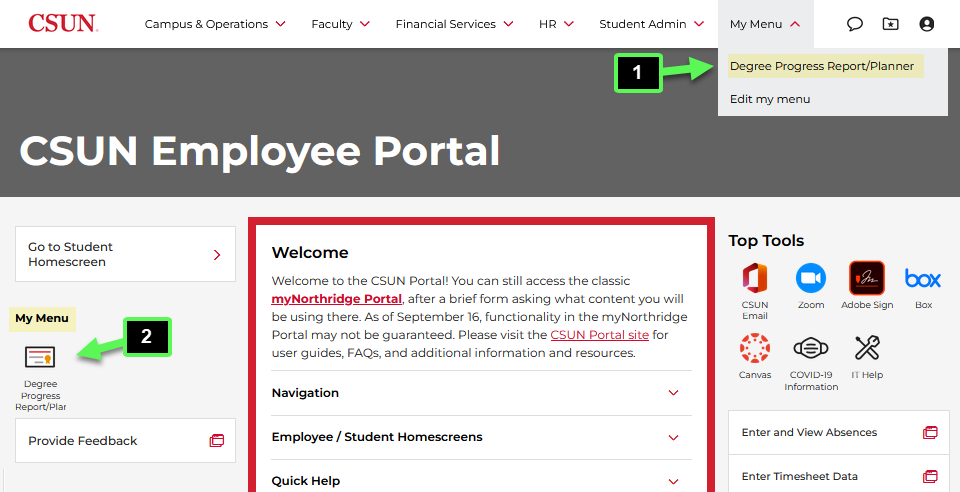
Depending on your CSUN security profile, you may access DPR/Planner in the CSUN Portal through at least two paths:
1. Select the top Student Admin menu and then choose the Degree Progress Report/Planner link.
—and/or—
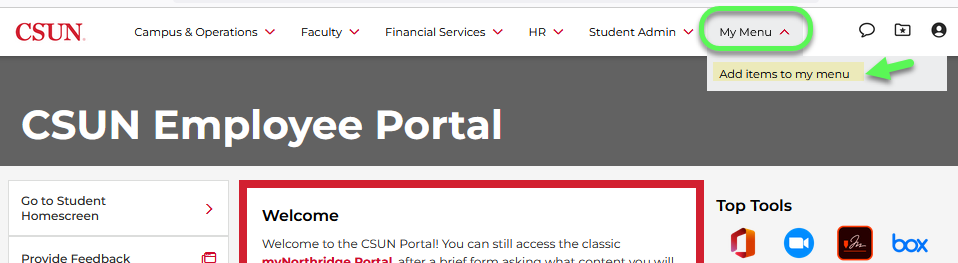
2. In the top customizable My Menu tab, select Add items to my menu.
—And then—
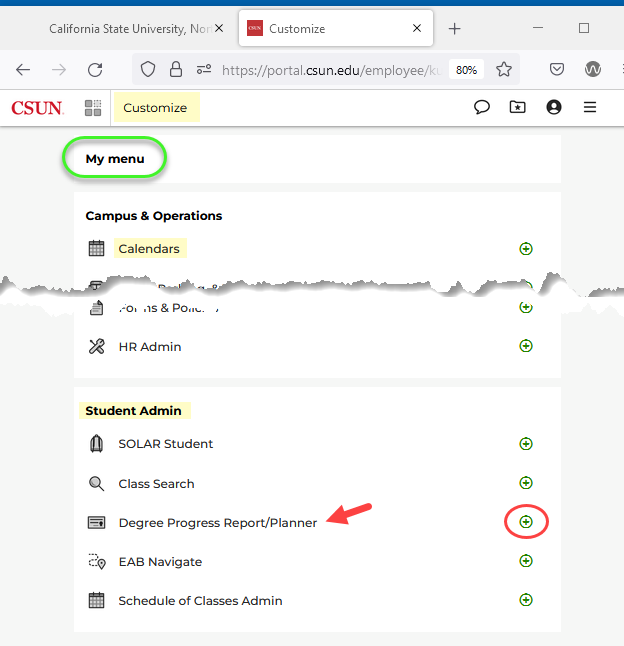
3. On the My Menu page, scroll down to the Student Admin menu heading to select the plus sign next to the Degree Progress/Planner link. This will add the DPR/Planner link to your customized menu.
DPR Step 3
Once you've added the DPR/Planner link to your custom menu, it will display in two places on your portal home page:
- In the top My Menu drop-down list
- In the left column as an icon link under My Menu
To get started, select either Degree Progress Report/Planner link.
DPR Step 4
As soon as you navigate to Degree Progress Report/Planner, the Select a School page displays. There are three choices to pick from: Undergraduate, Graduate, and Credentials.

DPR Step 5
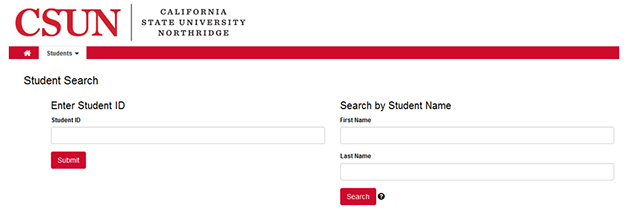
Select the student icon to search for a student.

DPR Step 6
Enter Student ID number or search by student name.
DPR Step 7
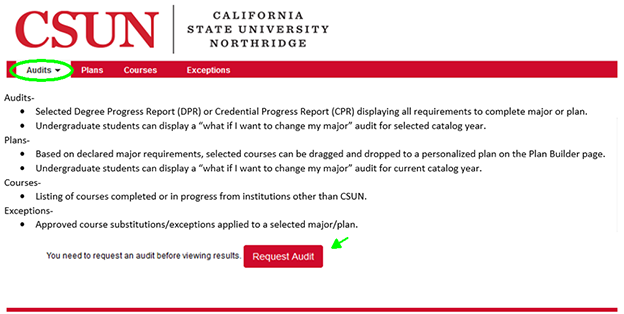
The instructional landing page displays when no audits exist.
Select the Request Audit button to run a Degree Progress Report.
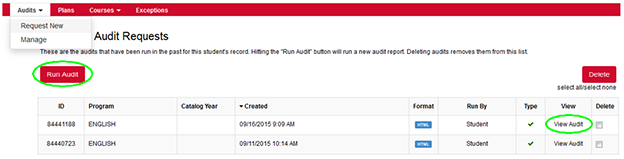
If an audit exists, the Completed Audit Requests page displays.
Choose from two options:
- Request a new audit: Select Request New (Audit drop down menu) or the Run Audit button.
- View a previously saved audit: Select Manage (Audit drop down menu) or the View Audit link.
DPR Step 8
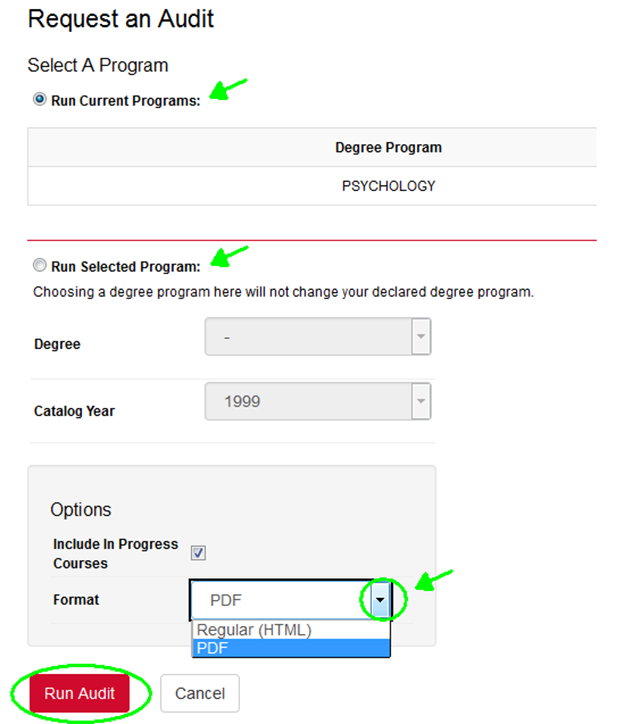
Select a program:
- Run Current Programs (Undergraduate and Graduate students) to run an audit for a student's declared program/major.
— or — - Run Selected Program (Undergraduate students only) to run a "what if I want to change my program/major" audit for a different major. This will not officially change a student's declared major. From the drop down menu:
- Select a Degree (program/major).
- Select a Catalog Year.
- Format defaults to HTML with the option to open and close requirements. Select PDF format to print, save or email entire DPR.
When done, choose the Run Audit button.
The Running Audits page displays while processing your request.

DPR Step 9
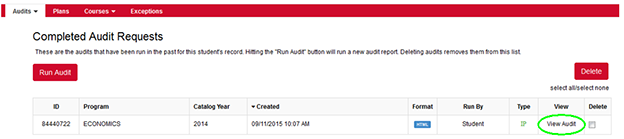
The Completed Audit Requests page displays. Audits that you have requested will be stored here.
To open an audit, select the View Audit link.
DPR Step 10
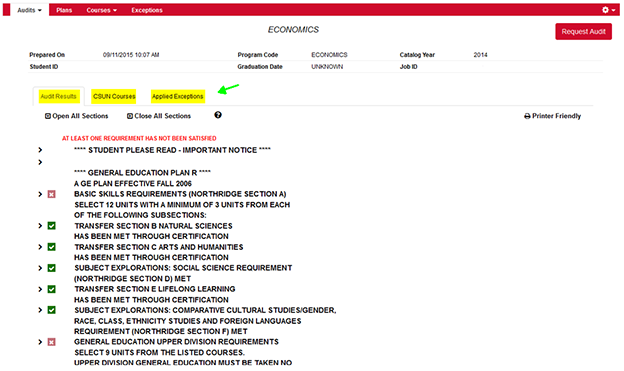
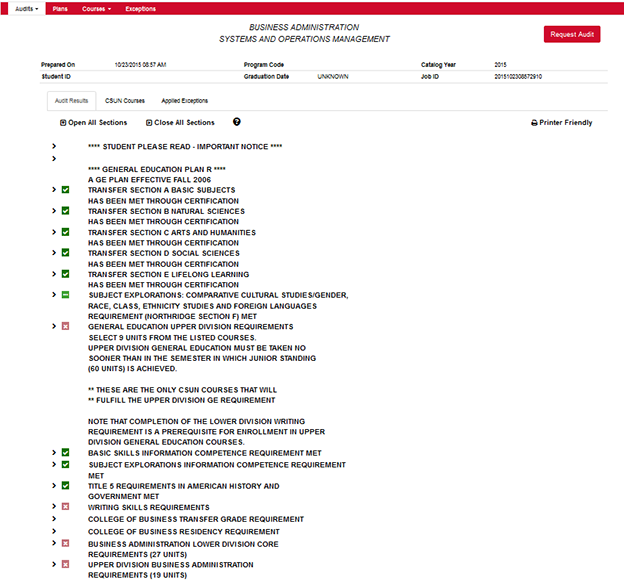
The report header displays a student's personal information and these three tabs:
- Audit Results tab: Displays requirements for degree completion.
a) A green check indicates a satisfied requirement.
b) A red X indicates an unsatisfied requirement. - CSUN Courses tab: Lists the courses completed at CSUN.
- Applied Exceptions tab: Lists the student's approved course exceptions and substitutions.
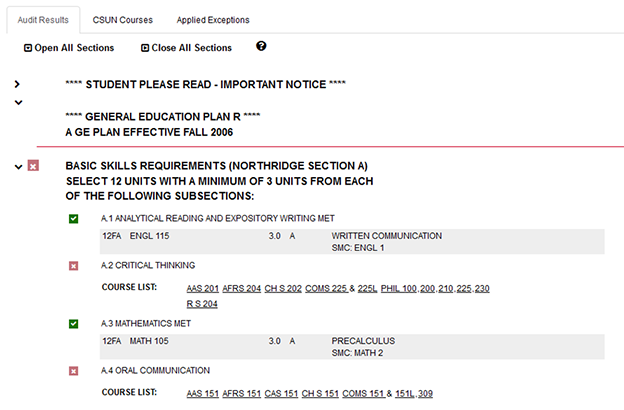
To view requirement details, select the arrow (>) to expand the desired requirement or select Open All Sections to expand ALL requirements.
DPR Step 11
Example Audit Report.
Navigate the Planner
INTRODUCTION
The interactive DPR Planner tool allows you to drag and drop courses from a student's degree audit to a personalized term-by-term plan to complete remaining requirements. Using this tool will help CSUN offer more of the courses students want available in future terms.
By creating a Plan, students can:
- Enhance advisement appointments with prepared plans.
- Visualize timeline for degree completion.
- Produce course data for departments to predict future course demand.
Planner Step 1
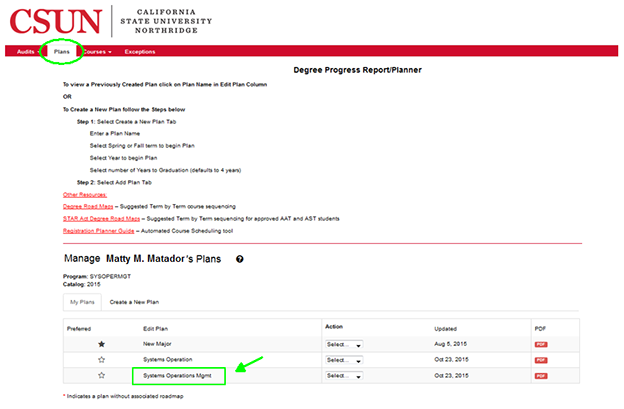
Select the Plans tab to create a unique academic plan toward degree completion. The Plans landing page displays.
If students have previously created a plan, the My Plans tab displays it. Choose a plan name to open and modify it.
Planner Step 2
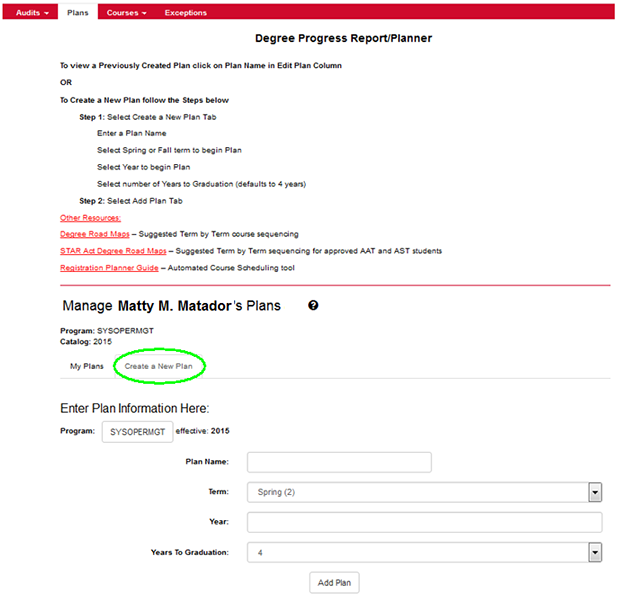
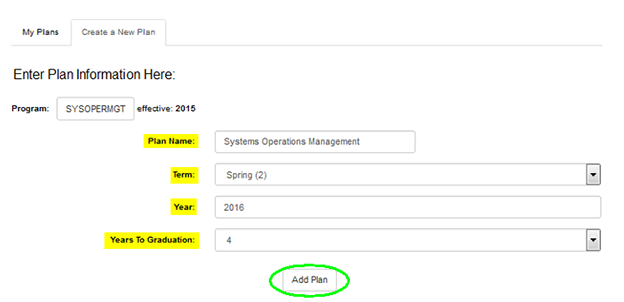
To create a new Plan, select the Create a New Plan tab. The Manage Plans page displays, defaulting to the student's current degree program/major.
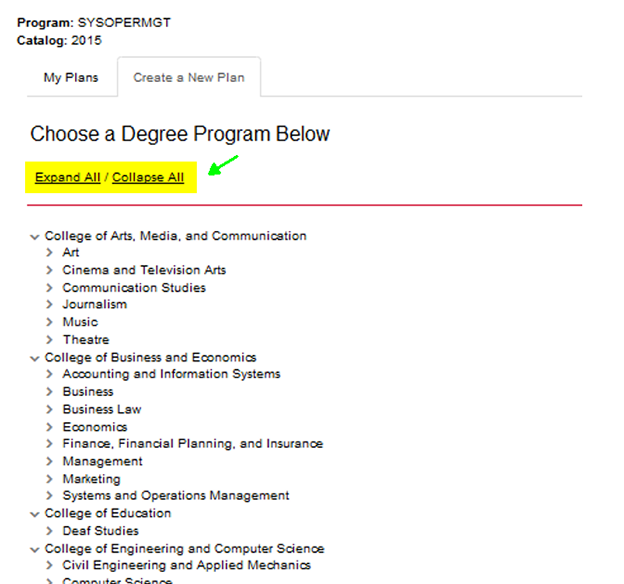
To change the degree program/major, select the Program button and select one from the list of available degree programs/majors.
Planner Step 3
Fill-in the following fields to begin:
- Enter a Plan Name
- Select a Term (spring or fall) to begin plan
- Enter a Year to begin plan
- Select the number of Years to Graduation (defaults to 4 years)
When done, choose the Add Plan button to continue.
Planner Step 4
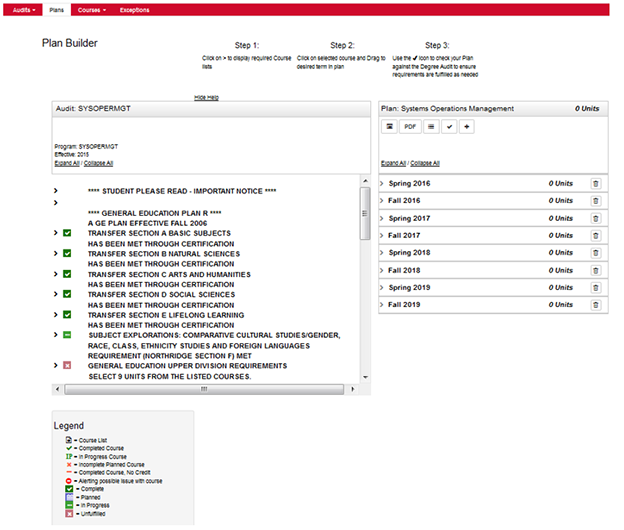
The Plan Builder page displays the student's Degree Program Audit (left column) and his/her personalized plan (right column).
Select an arrow (">") to display required courses.
- A green check indicates the requirement is complete
- A red X indicates course(s) are still needed to complete the requirement
Planner Step 5
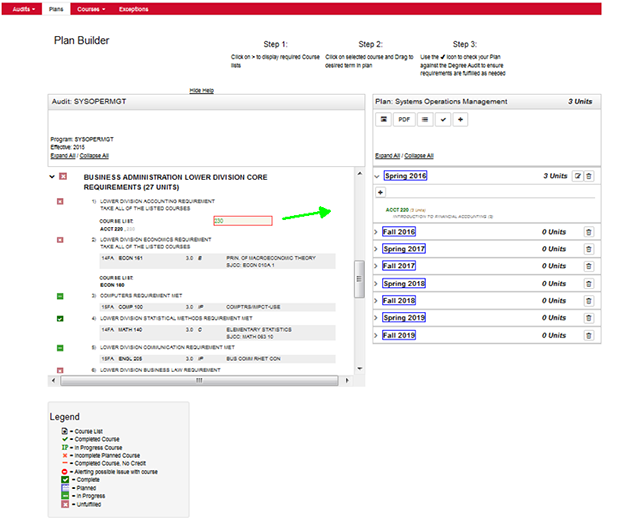
Drag and Drop courses from the audit to a desired term in a student's personalized plan. Units will be added to the plan and deducted from the audit.
For the department-suggested course sequence to degree completion, view Degree Road Maps.
Planner Step 6
Select the Check Plan icon to refresh and validate a student's audit and ensure that requirements are being fulfilled. When courses double count in both GE and major requirements, the validation displays completion in both areas.

Icons You Can Use:
- Select the Audit icon to display planned courses.
- View a PDF of a student's term-by-term plan, print or save it.
- Select the List icon to view a list of all the student's previously completed courses. Includes both CSUN and transfer courses.
- Select the Check icon to refresh and validate the plan.
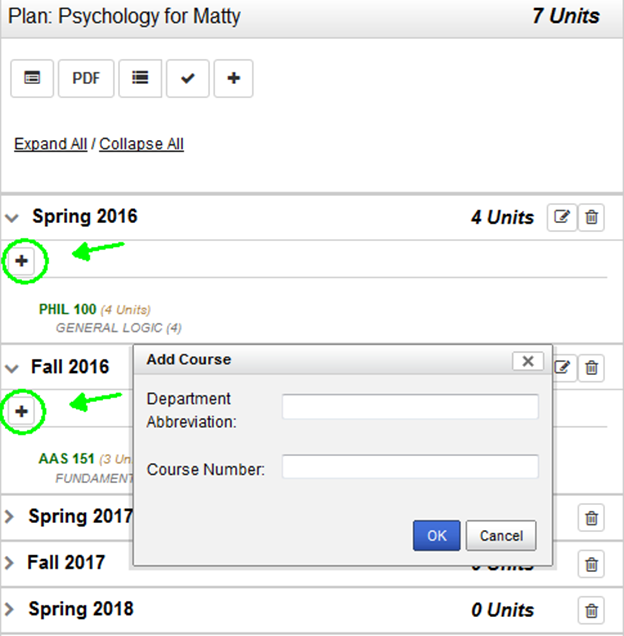
- Select the Plus Sign (+) icon to add a new term. The Plus Sign (+) listed in a term will add a course.
Features You Can Use:
ADD A COURSE: Choose the plus sign (+) within a term to add a course not listed on the audit. Enter the department subject abbreviation and the course number (BIOL 100), then select the OK button.
ADD A TERM: Click the plus sign (+) icon to add a term to your plan.

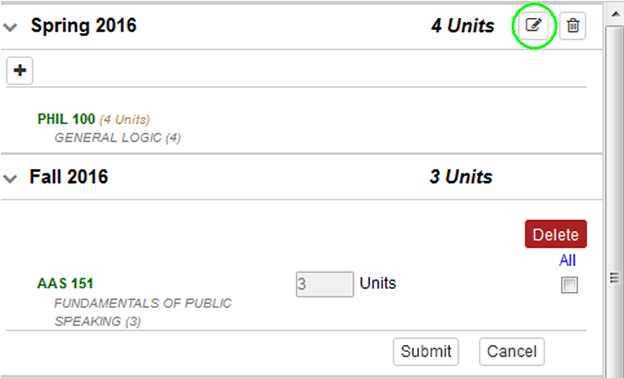
DELETE A COURSE OR TERM: Select the Edit icon to delete a course in a term; choose the Submit button to refresh the plan. To delete an entire term, choose the Trash icon.
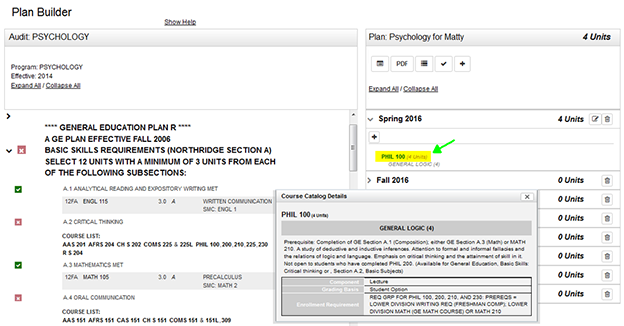
VIEW A COURSE DESCRIPTION: Left-click a subject to view the course description.
Planner Step 7
Select Plan from the menu bar to return to the Manage Plans page.
Select the Star icon to make a plan a preferred/favorite plan. CSUN will use the course demand data from the Preferred Plans to create future course schedules.
To view a PDF of your Plan, select the PDF button.

Additional Resources
For easy reference, you may want to bookmark the Degree Planning Tools.