This is a tutorial only. No login is required.
INTRODUCTION
Navigate to your current-semester final exam schedule in the CSUN Portal through the top Academics menu and the My Classes link. Always confirm your final exam schedule with your professors before your last class meeting.
Did you know?
- Final exams are assigned to classes twice a semester: At the start of nonrestrictive registration and about five weeks after classes begin to allow for necessary adjustments.
- If you are unable to take a final exam on its scheduled date, you must make arrangements with the instructor in advance. Visit University Catalog Final Examinations Policy.
- Final exams for summer and winter terms are usually scheduled for the last class meeting.
- You can view a final exam schedule for any class without logging into the portal using Class Search.
Find more information in the final exams section of the Academic Process Repository.
Step 1
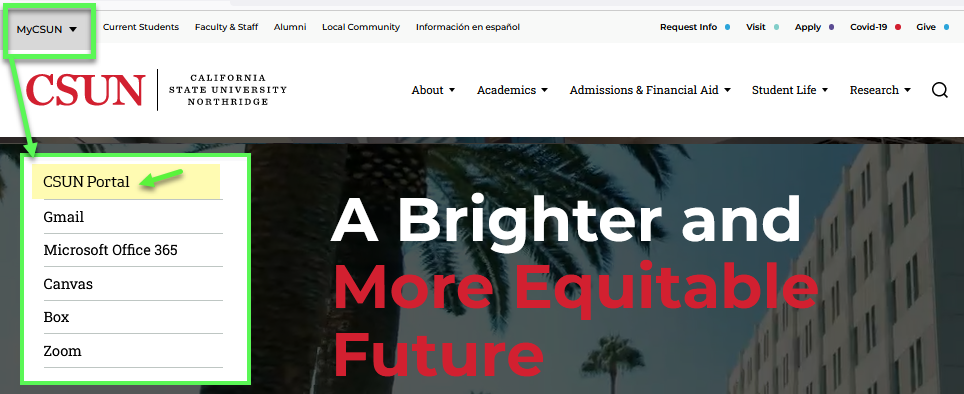
Go to the CSUN home page at www.csun.edu and:
- Open the MyCSUN menu in the top navigation.
- Select the CSUN Portal link.
- Log in with your CSUN user ID and password.
Step 2
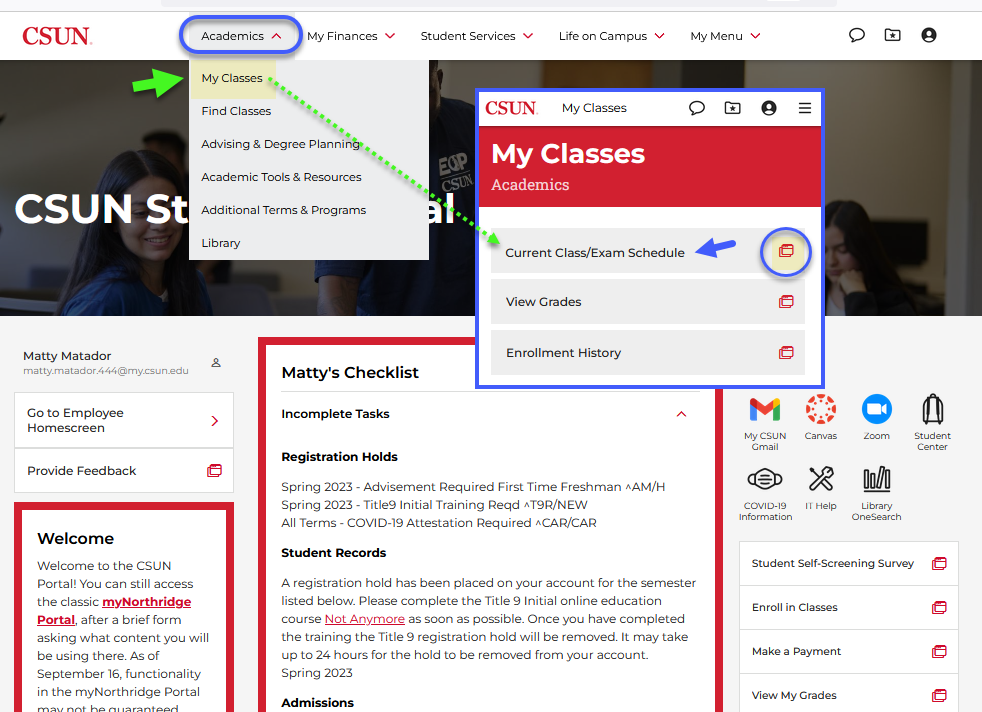
Your CSUN Portal home page displays.
- Select the top Academics tab.
- From the drop-down menu, select My Classes and then Current Class Schedule.
Step 3
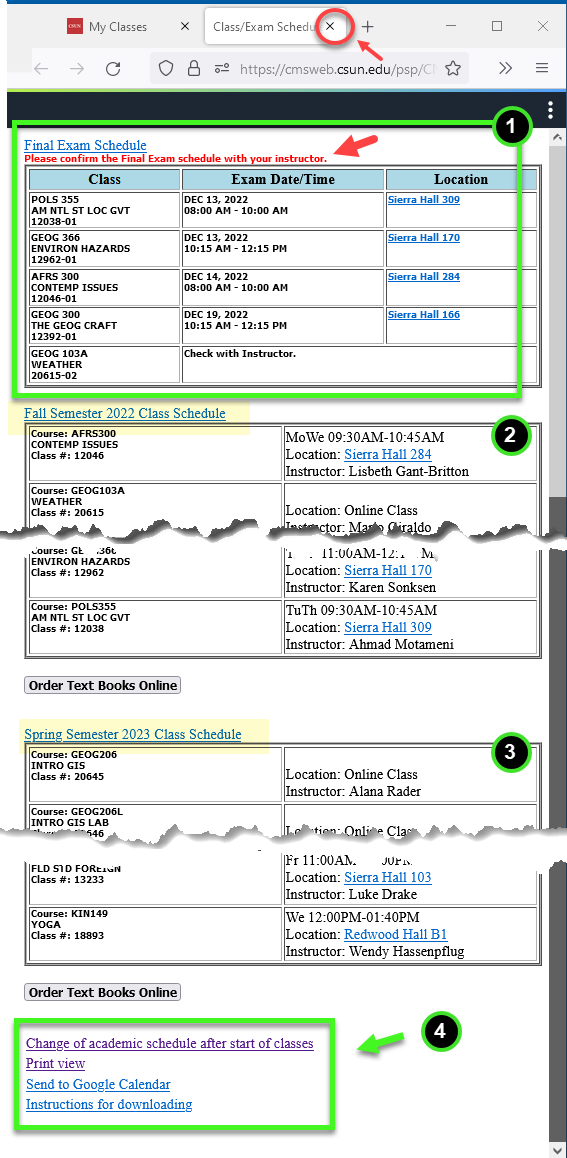
Your final exam and class schedules display. This student's page has three tables that you can show or hide using the header links:
- Final exam schedule for the current semester, including course title, number and class section number; exam date and time; and exam location.
- Class schedule for the current semester.
- Class schedule for the upcoming semester if you’ve enrolled in classes already. (The final exam schedule displays for the current semester only.)
Select a classroom link in any table to view its location on a campus map.
A fourth section at the page bottom lists resource links to late schedule change info, a schedule print view, an option to send your schedule to Google Calendar, and instructions for downloading.
Always confirm final exam schedules with your professors.
When finished, close the Class/Exam Schedule tab in your web browser to return to the portal My Classes page. Then use the back arrow to return to your portal home page. Always log out (not shown).