
Powerpoint
Starting off, you will want to create the proper file structure, you can complete this before you open up the application or you can complete this during the saving process.
1. Changing the fonts
2. Changing the color scheme
3. Adding graphics from the Internet or clip art
4. "Slide Show" "Custom Animation" and choose different options.
5. "Slide Show" "Action Setting" to create a hyperlink.
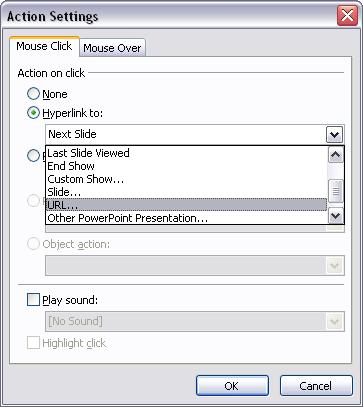
Once you choose this, you will then need to type in a URL. (Ex. if you wanted the person to go CSUN's homepage, you would type in http://www.csun.edu.
6. To insert a new slide, select Insert > New Slide" and continue with previous steps.
DOWNLOADING FROM THE WEB
In this section, you will learn how do download or copy pictures. Just about every image or picture that you see on the Web is downloadable. Keep in mind when you download an image, you will want to save the image to the correct location. This is very important and if you do not do this correctly, you will have a lot of trouble. In your case, you will download all of your pictures to the "ppt_folder" or whatever you named the folder. Lets practice on one.
2. Now that you have the image saved, you will want to place your image onto your presentation. To do this, go back to your presentation and choose "Insert" from the toolbar, "Picture" and then from "File" and you will need to navigate to where you saved the image. In this case, you saved it in your "images" folder and you should look for the file "

You will need to locate the file, then hit insert and the picture will appear on your presentation.
CUSTOM ANIMATION.
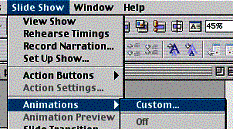
Once you put in animation, you then can add sound by clicking on the "effect options." Next to the sound, select a sound that would suit your presentation.
If you would like to add some transitions between slides, go to "Slide Show" then " Slide Transition." You can place a different transition for each slide or use the same transition for your entire presentation.
In the end, you will have completed the following....
1. Hyperlinks
2. Animation
3. Sound
4. Slide Transition
FYI items
Printing: If you decide to print, choose "File" "Print." When the print menu appears, choose "Microsoft PowerPoint" instead of "General." In the "Print What" choose "Handouts (6 slides per page)."
Converting your ppt to a Web page : After the initial save, example lesson.ppt, if you would like to post and have your ppt presentation on the web, go to file, save as web page, and place it in your u-drive (u-drive is your designated space on the CSUN server that will allow you to save your work and retrieve your work from any computer when you are at CSUN. U-drive is where you will need to save your work, if you would like others to be able to view it on the web. In particular, you will create a folder named, public_html and you will save your work in that folder) To log onto your udrive,follow this link.
