Find Textbooks

This is only a tutorial. No login is required.

INTRODUCTION

It’s easier than ever to access, borrow or purchase your textbooks and supplemental materials before classes begin. And thanks to two innovative initiatives listed below, you have more options to lower the cost of course materials:

  • Affordable Learning $olutions, Cost-Saving Tips: Practical advice and resources from the CSUN University Library, including price-comparison websites, zero- and low-cost materials, the Campus Store price-match program and more.

  • myCSUN Digital Access (MCDA) FAQ: Many, but not all, class sections have course materials in the MCDA Campus Store price-discount program. Your MCDA materials will be available in Canvas, CSUN’s learning management system, before classes begin. You are automatically enrolled in MCDA when you register for a participating class. You’ll need to opt-out before the deadline if you wish to obtain materials another way. See Step 5 below.

So that you can comparison shop, universities must publish the International Standard Book Number (ISBN) and retail price of required and recommended textbooks and supplemental materials for each course listed in the online Schedule of Classes.

  • CSUN Class Search and the Campus Store Textbook Search make available the ISBN, author, title, publisher and copyright date for course materials.

  • Some courses may have the course materials designation “To Be Determined” if textbook information is not available or not practicable to disclose.

Let’s find textbooks in Class Search!


Step 1

There are at least two ways to access Class Search:

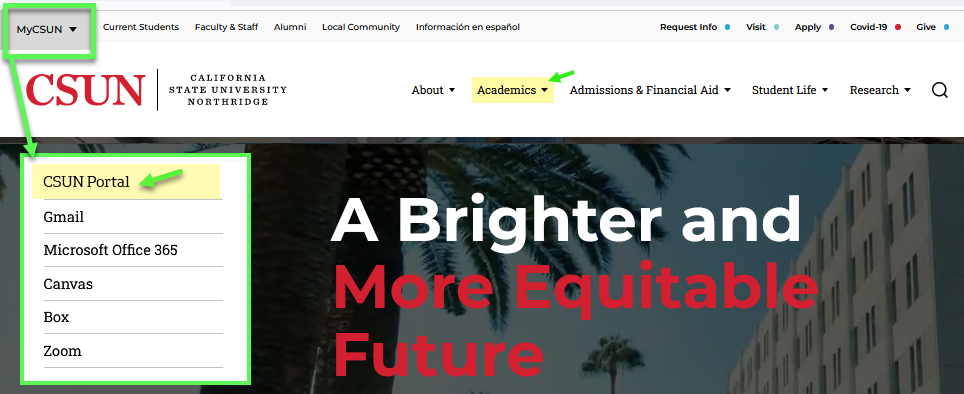
  1. If you have a CSUN account, log in to the CSUN Portal with your user ID and password from any CSUN web page.

  2. If you are a guest or you don’t want to log in, you can:

    • Visit Class Search. No login is required.
    • Or select Academics on the CSUN home page top navigation and choose the Class Search link.
MyCSUN menu with CSUN Portal login link on every CSUN webpage.

If you are logged in to the CSUN Portal:

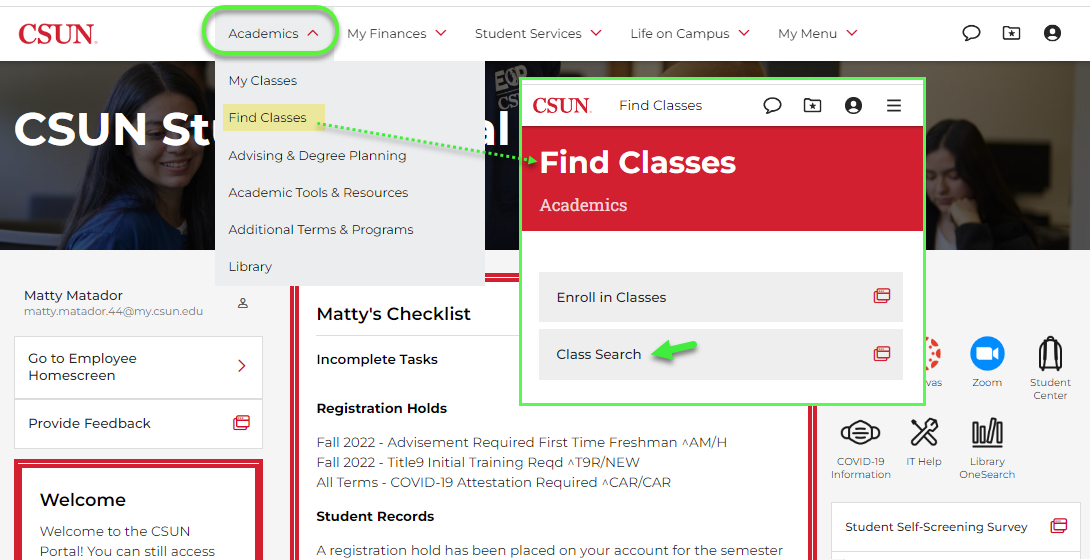
  • Students: Your portal home screen displays. In the Academics menu in the top navigation, choose Find Classes and then Class Search.

  • Faculty or Staff: In the Student Admin menu in the top navigation, select Class Search (not shown here).

CSUN Portal top tab Academics menu opened to Find Classes page and Class Search link.

Step 2

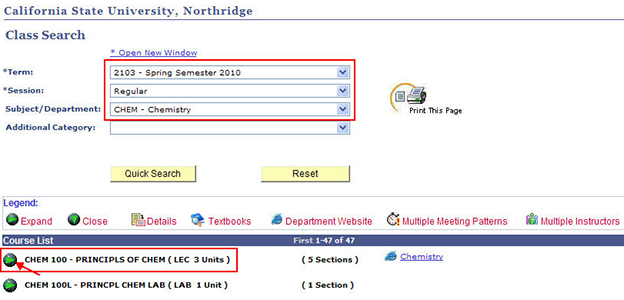
Class Search displays. Use the pull-down menus to select the desired Term, Session, Subject, Course Number and other filters. In this step, we’ve chosen all Biology (BIOL) courses.

Tip: You can use the Additional Category filter to select only the courses and class sections that have low-cost or zero-cost materials assigned, as shown below.

Class Search Additional Category field with zero- or low-cost course materials filters.

The Class Search legend box at the upper right (shown below) explains the icons used in the Schedule of Classes. The textbook icons are:

  • Blue textbook icon: Default textbook information. This icon might display when no textbooks are required, so be sure to open the icon and check.

  • Green down arrow with dollar sign: Low-cost course materials for $50 or less.

  • Red circle with slash through a dollar sign: Zero-cost course materials.

Select the Search button to display all Biology courses.

Class Search filter fields and Legend box with 10 icons, including 3 for textbooks.

Step 3

The Course List for all Biology (BIOL) courses displays.

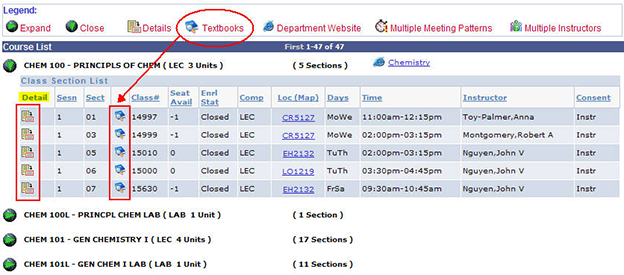
Select the green triangle to toggle open the Introduction to Biology (BIOL 100) Class Section List. Note the textbook icons in the fourth column, the ones explained in the legend box.

Select the blue textbook “default” icon for Biology (BIOL) 100, class number 18082.

Course List results for all Biology courses showing all three textbook icons.

Step 4

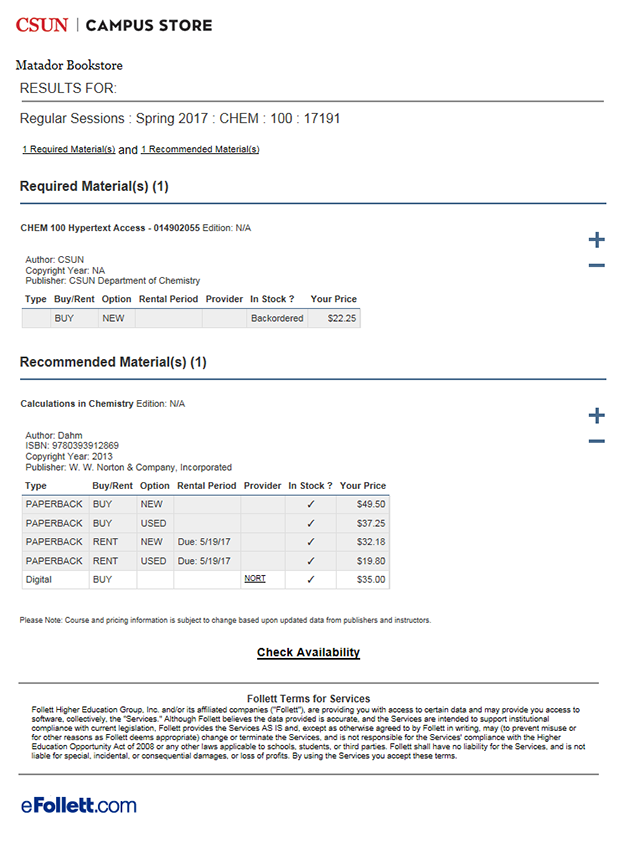
The Campus Store Course Materials page opens in a new window and displays the textbook for Biology 100, class number 18082.

  • This textbook is required.

  • The digital version is available for rental and the print version for purchase.

Full information about the textbook is provided, along with the rental and purchase prices, so that you can comparison shop if you like. If you will rent print materials, see Textbook FAQ: Rental.

Be sure to select the two links associated with the digital rental on this page:

  • The question-mark icon opens a note disclosing a non-refundable digital delivery fee.

  • The Requirements link opens a panel that identifies the download provider name, in this case Kortext, and the duration of the digital rental period, 180 days.

Find instructions for Kortext E-Book Delivery on the Campus Store website.

Tip: You can often sell back the print textbooks you buy. Visit Campus Store, Textbook Sellback.

Campus Store Course Materials page for the Biology 100 class section we chose.

Step 5

In a different example, the French 101 class section shown below is participating in the Campus Store’s price-discount MyCSUN Digital Access (MCDA) program. Please note:

  • Your MCDA course materials will be provided through Canvas, CSUN’s learning management system, before classes begin.

  • Do not purchase MCDA materials. You will be charged for them in your CSUN Portal student financial account about four or five weeks after classes begin.

  • You must opt out before the deadline stated in the first Section Note (highlighted in yellow below) if you wish to purchase the French 101 course materials another way. You will be charged if you don’t opt out before the deadline.

  • Review your instructor’s syllabus in Canvas and check your CSUN email for important MCDA details. Also helpful: myCSUN Digital Access (MCDA) FAQ

Open the question-mark icon and the Requirements link for essential information about and instructions for these digital materials.

French 101 Course Materials page with M C D A details and deadline to opt out.

Step 6

You’ll find a variety of messages on the Campus Store Course Materials pages for different courses and class sections. Here are four examples:

  • Armenian 310, class #14108: Designated a low-cost course materials class section. One textbook is required. Both used and new books are available for rent or purchase, ranging in price from $9.40 to $23.50. Open the question-mark icon for essential information about used books.

Armenian 310 Course Materials page with one required book and used book details.
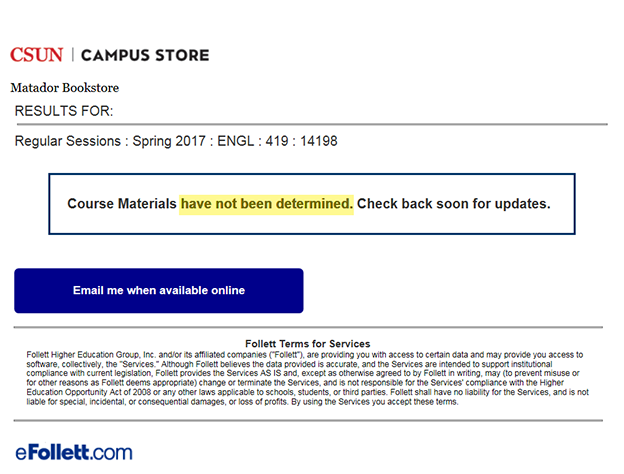
  • Biology 281, class #17088: Course materials for this class section “have not been determined.” Maybe the instructor hasn’t ordered them yet.

    • Select the Email Me button to be notified when the materials become available, and/or

    • Contact the instructor or the department offering the course. Have the five-digit class section number ready.

Biology 281 Course Materials page “not determined” message and “email me” button.
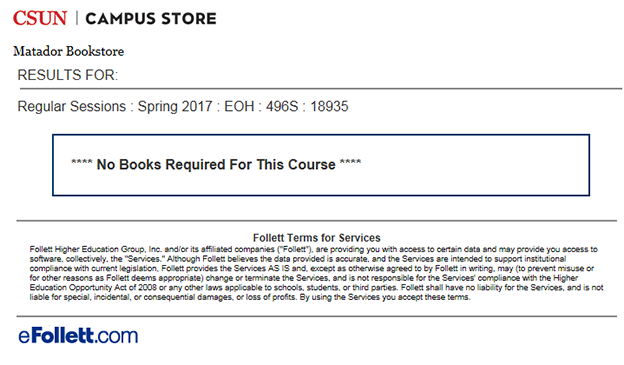
  • Geology 307L Lab, class #18178: This lab section has no required textbooks, but the corequisite Geology 307 lecture class does. Be sure to look up textbooks for both corequisite classes.

Geology 307L Lab Course Materials page “no books required” message.
  • Urban Studies 340A, class #12053: Designated a zero-cost course materials class section. Ask your professor for the required, free “open educational resources” course materials.

Urban Studies 340A Course Materials page “free Open Educational resources” message.

Step 7

You can also navigate to textbook information from the Class Details page of Class Search.

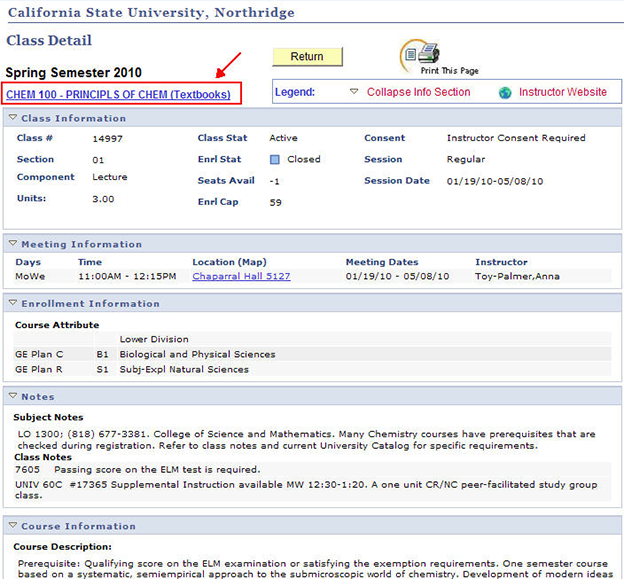
In this example, select the Details icon link for the Biology 100 lecture course, class number 17309. Then select the BIOL 100 – INTRO BIOLOGY (Textbooks) link at the upper left to view the course materials assigned to this section (if any).

Class Search Class Detail and textbook link for Biology 100, class number 17309.

Step 8
Final Thoughts:

  • Textbooks for a term or semester should display in Campus Store Textbook Search about four or five weeks before classes begin.

  • An “Order Textbooks” feature is available through the My Class/Exam Schedule link on the CSUN Portal home page in the link stack below the Top Tools section. Once you’re enrolled in classes, a button link will display in your class schedule that takes you to the Campus Store Course Materials page for each of your classes.

  • You are free to purchase textbooks and supplemental materials from any bookseller you like.

If you have questions about textbook or other course materials formats, ordering or payment, visit Textbook FAQ or contact the Campus Store, (818) 677-2932.
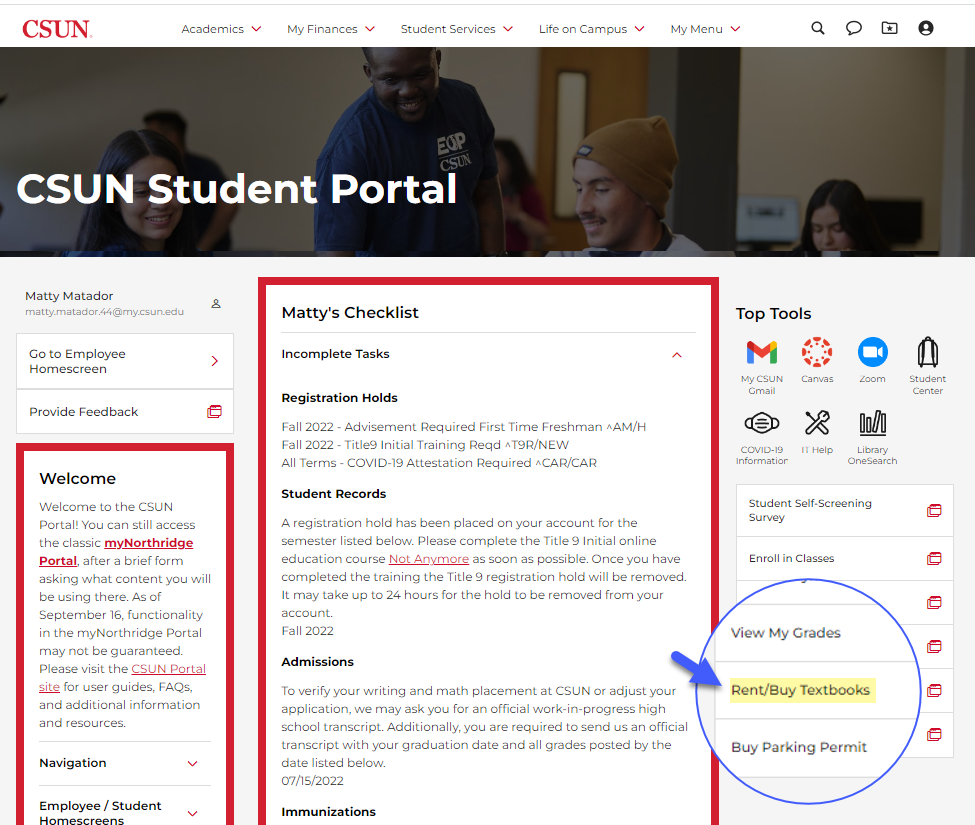
CSUN Portal home page showing link to My Class/Exam Schedule (Order Textbooks).