This is a tutorial only. No login is required.
INTRODUCTION
This guide reviews how CSUN staff granted security access to the Schedule of Classes (SOC) creates general permission numbers thereby setting consent and restricting enrollment in a class using the Maintain Schedule of Classes and Class Permissions components. When a student is identified as eligible using student specific permissions, SOLAR hides the permission box on the registration page and does not require the student to enter a permission number because authorization has been preapproved. The student adds the class into his/her shopping cart and submits it like any other class.
Two types of permissions can be assigned to restricted classes in SOLAR. Each permission type lends itself to a distinct enrollment situation:
- General permission numbers are generic numbers used to add students whose identities are not already known (e.g., to fill available seats for a GE course in a large lecture hall, for advisors to distribute in satellite areas). Follow the steps in this guide.
- Student Specific permissions uses the 9-digit Student ID (no other number) for students already identified as eligible (e.g., in smaller and more carefully monitored programs like Physical Therapy). Refer to Create Student Specific Permissions guide.
All classes require permission during the 2nd and 3rd week of instruction (Late Registration). View the Class Scheduling Build Instructions calendar for specific dates.
Permissions of either type do not override overall student limitation rules such as:
- Time conflicts
- Enrollment beyond the maximum unit limits
- Duplicate enrollment in the same class
- Registration holds
- Enrollment in repeated courses prior to the Thursday before classes begin
Student Specific permissions can be reused until:
- The expiration date set by the department or professor is reached
- The close of Late Registration/Schedule Adjustment when self-service registration ends
Note: Students will be able to add/drop multiple times with SSP. SOLAR will not permit the permission row to be deleted because it becomes part of the student's registration transaction record. To restrict excessive adds/drops consider setting an earlier expiration date.
Troubleshooting:
- History is lost if you switch from general permissions to SSP or vice versa.
Step 1
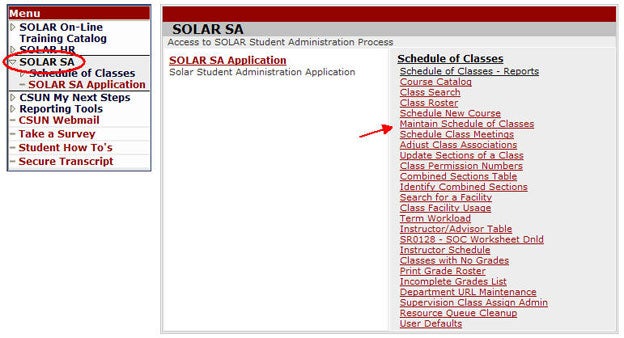
- Log into myNorthridge Portal.
- Under the Staff Tab, click SOLAR SA.
- Click Maintain Schedule of Classes.
Step 2
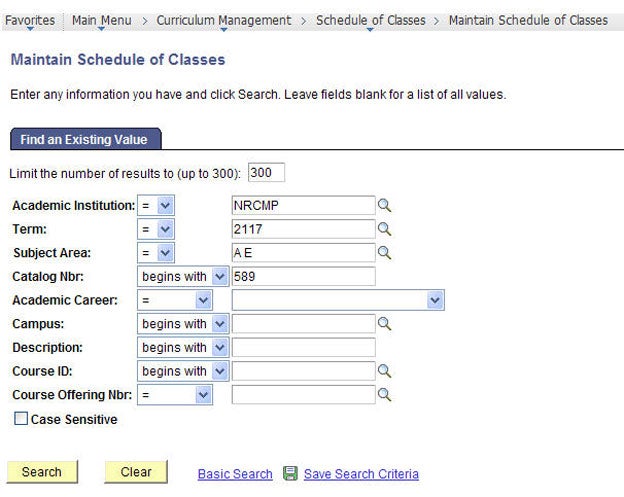
On the Find an Existing Value page:
- Enter the Term
- Enter a Subject
- Enter the Catalog Nbr (if known)
- Click Search
- Select a course from the Search Results
Step 3
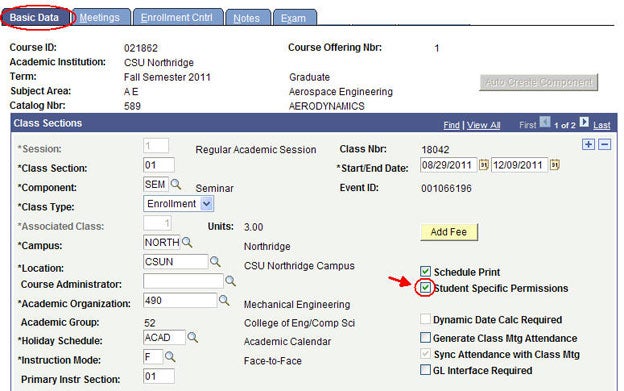
The Basic Data page displays.
- Check the Student Specific Permissions box.
- Go to the Enrollment Cntrl page.
Step 4
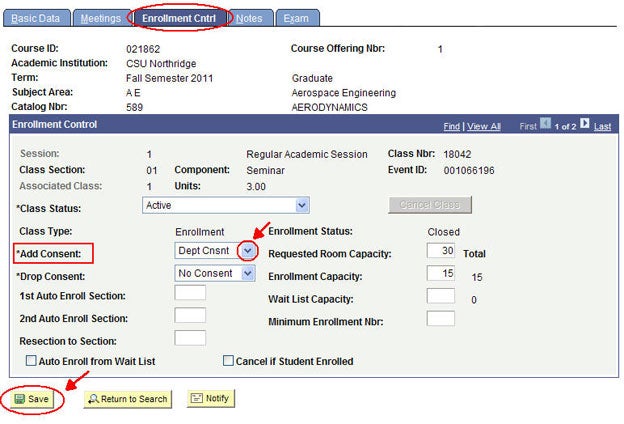
The Enrollment Cntrl page displays.
Set consent to restrict the class using:
- *Add Consent
- Click Save
Go to Class Permissions to enter the eligible students.
Do not change the *Drop Consent system default value NO CONSENT because students will be unable to drop their classes. This feature is not used at CSUN at this time.
Step 5
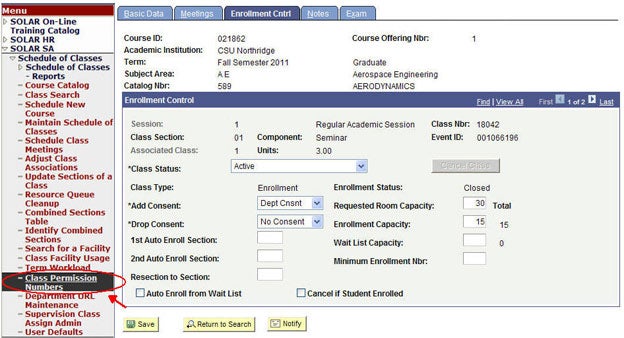
Click Class Permission Numbers to setup permission criteria.
If using the SOLAR SA Application navigation, the path is: Main Menu > Records and Enrollment > Term Processing > Class Permissions.
Step 6
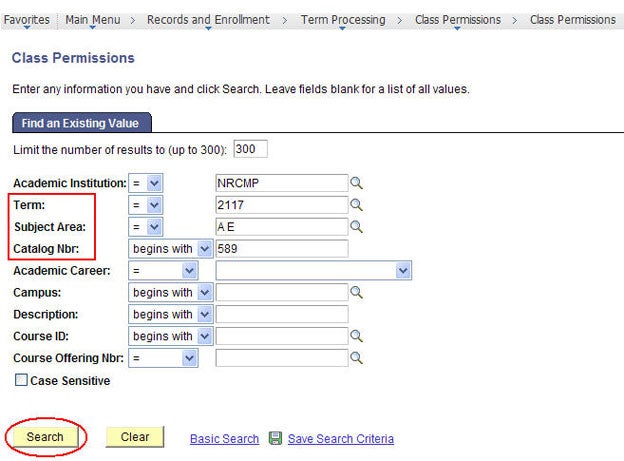
The Find an Existing Value page displays.
- Enter the Term, Subject Area and Catalog Nbr.
- Click Search.
Step 7
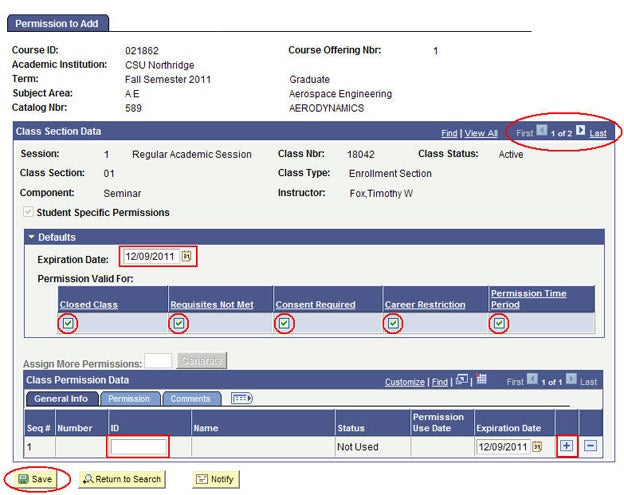
The Permission to Add page displays.
Have the list of student ID numbers handy before you begin.
- Navigate to the desired class section.
- Enter the student's ID number.
- Click the plus sign (+) to create more rows.
- Save the record before exiting.
Learn about: