Current
Location: Section IX - Identifying the Appropriate Databases -- PubMed for
Journal Articles
[
Top ] : [ Module 3 ] : Section IX -
Identifying the Appropriate Databases -- PubMed for Journal Articles
Course
Documents
SECTION IX
Identifying the appropriate databases – PubMed for
Journal Articles
We need to look briefly also at PubMed: We
have already seen that Medline can be accessed from the Communicative
Disorders Distance Learners:
Databases and Document Delivery Home Page. There is also a link to a database
called , “PubMed,” which is very similar to Medline.
http://library.csun.edu/mhenry/de-comdis.html
Communicative Disorders Distance Learners: Databases and Document Delivery Home
Page
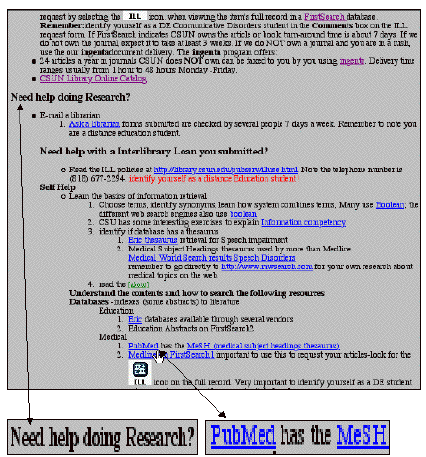
We may have to scroll down to see it. It is toward the
bottom in the “Need Help Doing Research”
Section under #4. Both
Medline and PubMed provide the same information as we used to get from
the Index Medicus Journal Index, which was typically found in book form in
the Library Reference Room before the internet took hold. Medline, as you
know is accessed now through FirstSearch, for which you must have a 14
digit barcode. We have discussed that earlier. PubMed, however,
is available to anyone on the internet. It is not as
comprehensive as Medline, but it provides some valuable assistance including
specifically, the ability to search for the official subject headings associated
with a particular topic. These headings are organized within the specific
“tree” structure used by Medline.
We can access PubMed , as we said above, by using the link (the
word PubMed) provided on the DE Com. Dis. Home Page (above). This will
take us to the PubMed Search Page.
http://www.ncbi.nlm.nih.gov/PubMed/
PubMed Search Page
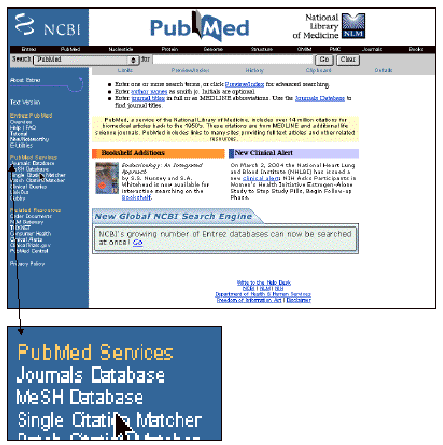
We
could start searching for our topic immediately, using our own favorite
keywords (e.g., Alternative Communication Devices), but we may be more
effective if we adopt the Official Subject Headings (the controlled
vocabulary) used both by MedPub (and by Medline). We can do this by
clicking on the “MeSH Database” link in the left hand section in blue
under PubMed Services (see above).
PubMed MeSH (Medical
Subject Headings) Gateway
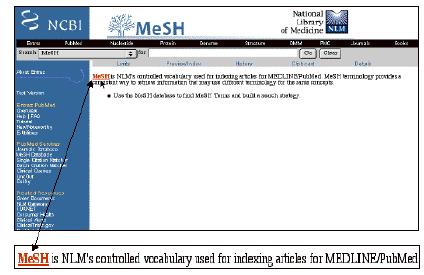
On
this screen, we are interested in the MeSH (Medical Subject Headings)
link. This will take us to a page
where we can determine (browse for) the Official Subject Heading used by
Medical Journals in Medline and others.
National Library of Medicine MeSH Medical Subject Headings Home Page
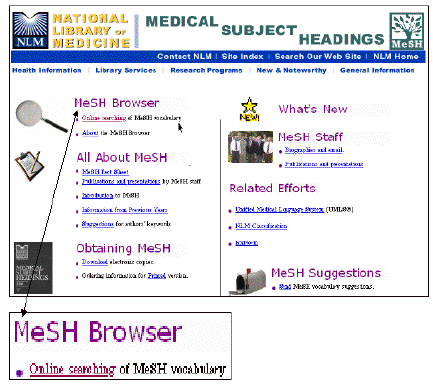
Hence,
we will click on the “Online
Searching” link for MeSH vocabulary and arrive the following MeSh Browser
screen:
National Library of Medicine Medical Subject Headings Browser
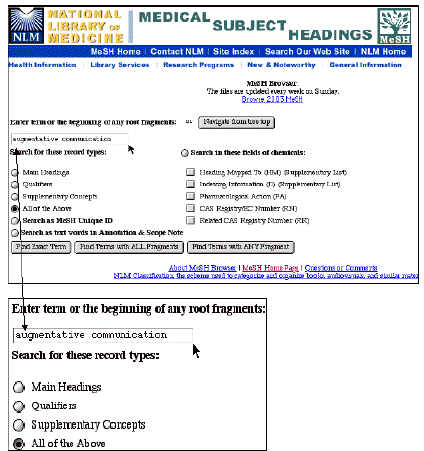
We
might note in passing that we have temporarily left PubMed and are now in the
National Library of Medicine Medical (NLM) Subject Headings (MeSH) page. The significance of this is that we
will have to use the “back” button on our Browser to get back to
PubMed when we want to conduct our reference search. In the MeSH Browser Screen we can type in a term that
seems reasonable to us relative to our topic, for example, “augmentative
communication.”
There
are three choices for the search:
1. Find the ‘Exact
Term;
2. Find Terms with ALL Fragments;
and 3. Find Terms with
ANY Fragments. If we select the
second option, we get nothing!
That was disappointing. So
we try different terms, like, “aac communication.” This time we get some very helpful
information back in terms of official subject headings:
National Library of Medicine Medical Subject Headings
Browser Search Results for “aac communication”
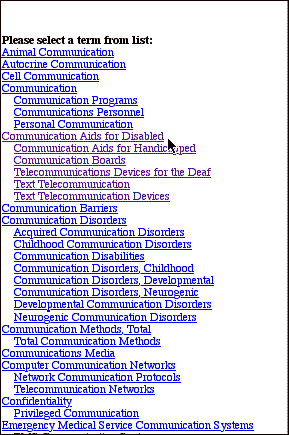
If
we follow through and click on these links (like the first one,
“Communication aids for disabled,”) we obtain an even wider list of
subject headings (entry terms) and information about the MeSH Tree Structure.
National Library of Medicine MeSH Headings & Entry
Terms.
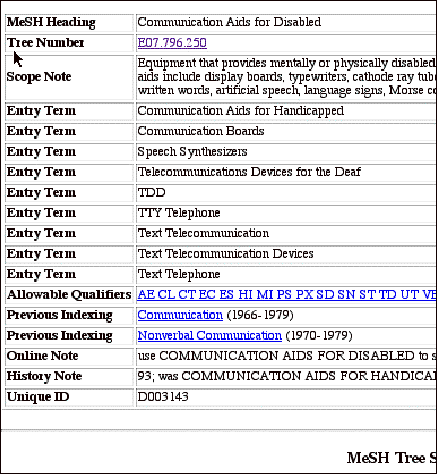
We certainly have enough information now to start an
effective search, so we can return to the PubMed Search Page by using the back
button on our Browser.“
Actually, it may be more convenient to return to the Communicative
Disorders Distance Learners:
Databases and Document Delivery Home Page and use the PubMed link there.
PubMed Search Page
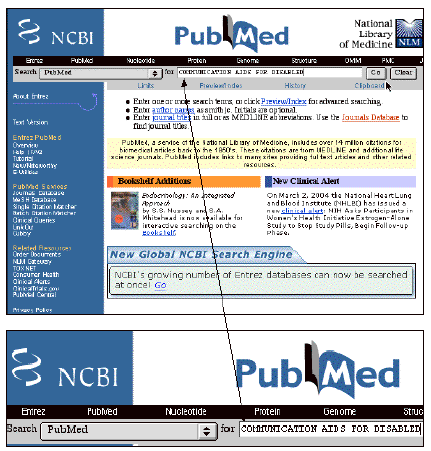
Once
we are back at the search page we can put an official subject heading like,
“Communication Aids for the Disabled,” and click on the
“GO” link. We will get a productive list of around 51 articles.
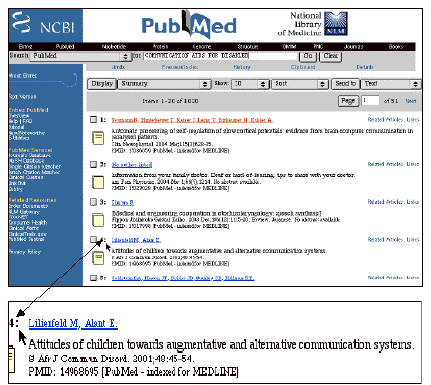
We
can scroll down until I find an article, which is of interest to us. If we
find many, we can mark them so that later we can retrieve only those articles we
want to explore further. If there is only one, we can click on it to get
more information.
PubMed Full Text Reference
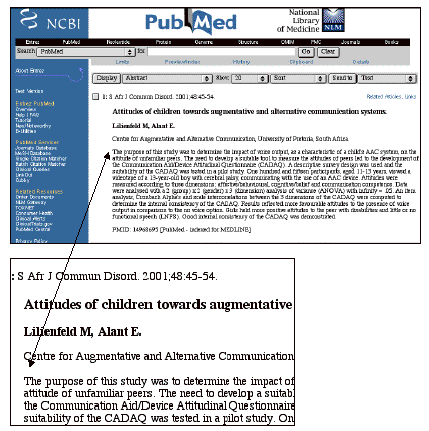
If
we select number 4 in this instance, we will get among other useful items, an
abstract of the article, which will help us to determine if we want to pursue
it further. Unfortunately, PubMed does NOT tell us if the journal, which
has the article, is subscribed to by our University Library. But, with
the information we have received, we can quickly find this out through University
Library Online Catalog! And then we can go through First Search to find
the article.