Accessing and using Discussion Boards in WebCT

- Log in to WebCT - and access the class WebCT site
- You will find a "Discussion Board" link on the left menu, as well as an icon on the main page
- click on EITHER of those links to get into the Discussion Boards
- You come to a list of Topics screen that will look something like this:

- Click on one of the topics above. The topics are organized
mostly by the dates on which discussion boards or question links are due.
- For example, you might click on the "August 30th - Intro" topic.
- This takes you into the topic... giving you a screen that looks like this:
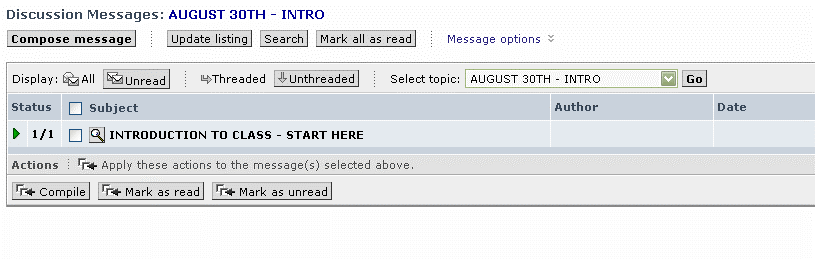
- If you click on the green arrow [under STATUS], it will open up to reveal the messages
that are posted under the first thread "Introduction to Class - Start Here"
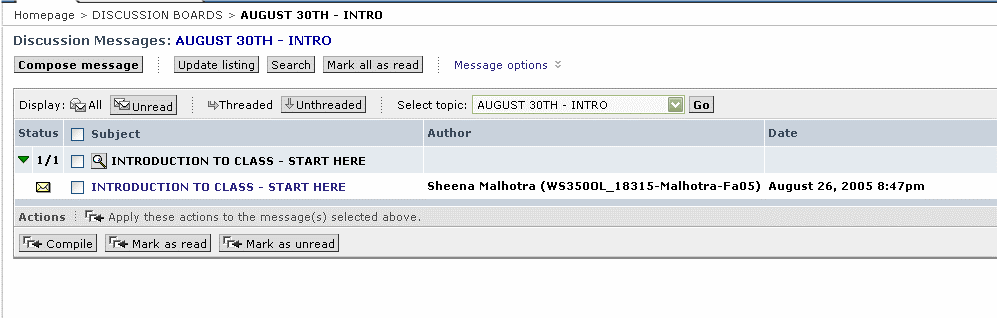
- You can now click on the message itself, of which I am the author.
That opens the message and you can read it.
- To post an "original post" click on the COMPOSE MESSAGE tab and write a post
that answers the questions I have posed.
- To post a "response to your classmates," click on REPLY when you have their message open.
That will put your response into their thread.
- To check if your message has "gone through", click on the "UPDATE LISTING" tab,
and your message should show up in the list.
- The best way to familiarize yourself with this program is to click around and try different options.
You can use the "Intro Post" to "play" and figure out how this all works.